
I use SiteGround for most of my personal websites because it allows me to host unlimited sites without extra cost.
I prefer deploying with git instead of SFTP: I make changes locally, test them, then push with git push production master to deploy.
SiteGround includes built-in git support, but it behaves slightly differently than some other hosts. A helpful walkthrough from 9seeds guided my setup.
Add a .gitignore file
By default, SiteGround versions the entire wp-content directory: themes, plugins, and uploads. If you only want to version specific themes and plugins, create and upload a .gitignore file before creating the git repository on SiteGround.
I migrated a site to SiteGround and created the repository immediately. It included about 2GB of uploads, which made the repo unnecessarily large. Adding a .gitignore afterward didn’t remove the uploads from the repository history. The solution was to delete the repo on SiteGround, add the .gitignore to the site root, then create a new repository so the uploads weren’t tracked.
I keep a sample .gitignore that lists only the themes and plugins I want to track. Edit a sample to suit your needs and upload it to the top level of your WordPress install before initializing the repository.
Create the repo on SiteGround
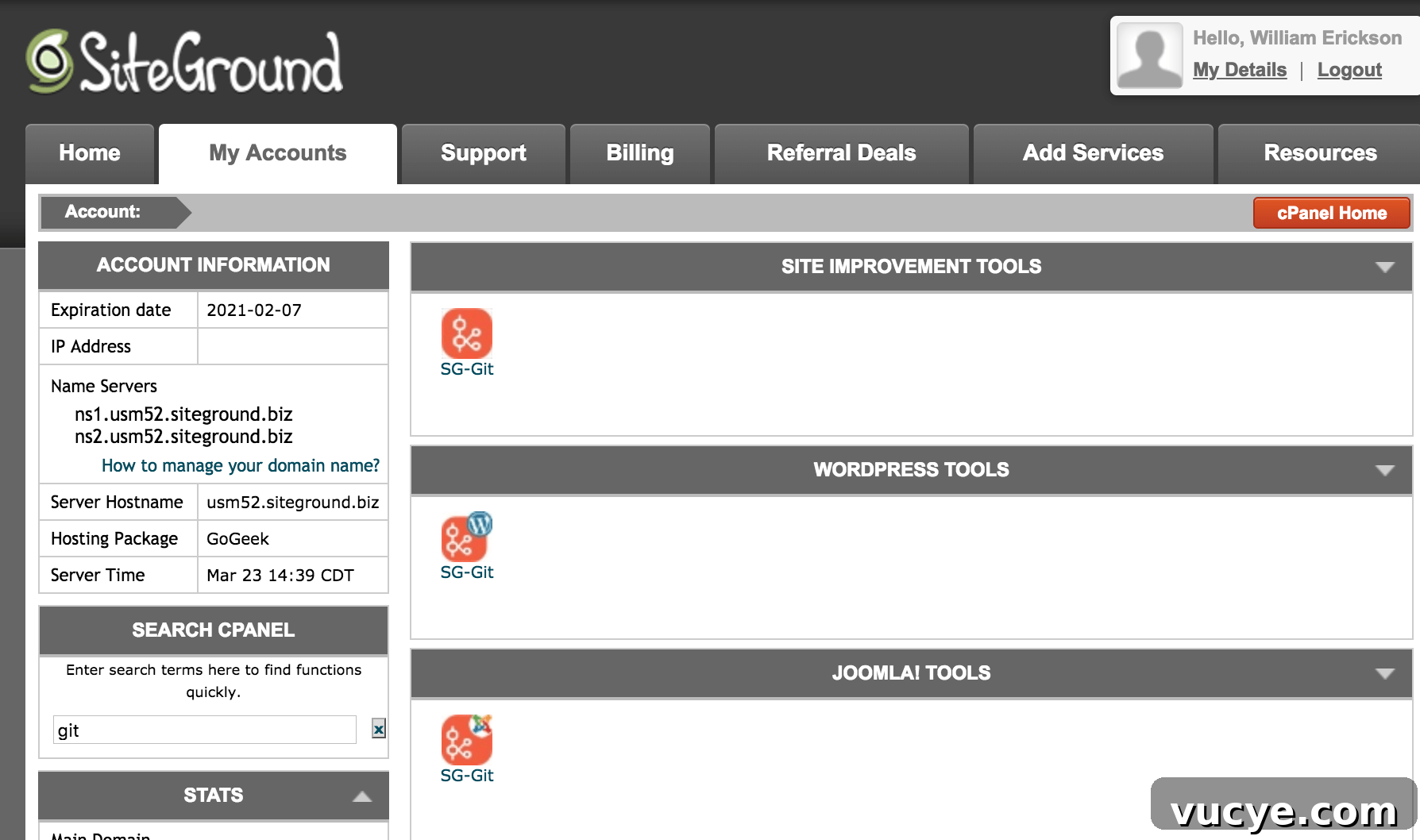
Log into SiteGround and open cPanel, then use the search to find the “SG-Git” tool.
At the bottom of the SG-Git tool you’ll see domains that aren’t under version control. Click the green “Create git repository” button beside the site you want to track.

A popup will show a git clone command and an SSH key. For a basic workflow you only need the git clone command.
Copy the git clone command and run it locally in the folder where you keep your projects. For example, I use a /wpdev directory; running the clone there creates a folder named after the domain (for example /wpdev/yoursite.com). You can rename that folder with mv yoursite.com yoursite if you prefer.
Integrating GitHub
The repository you cloned will have a remote named origin that points to SiteGround. I prefer to use origin for GitHub and name the live server remote production. To switch remotes:
- Rename the existing remote:
git remote rename origin production - Create a private repository on GitHub and copy the clone URL.
- Add that URL as the new origin:
git remote add origin
Note: private GitHub repositories require a paid account. If you want free private repositories, Bitbucket is a solid alternative with unlimited private repos on free plans.
Making code changes
When you’re ready to save changes to your central repository on GitHub, run git push origin master. To deploy changes to your live SiteGround site, run git push production master. For handling database synchronization between environments I recommend a tool like WP Migrate DB Pro.
That’s the complete workflow. Using git with SiteGround keeps deployments clean and repeatable and is usually faster and less error-prone than SFTP. If you want help tailoring a .gitignore or setting up remotes, I can walk through those steps with you.